# Fiamma Bridge

### Introduction

* This guide shows how to complete deposit and withdrawal on the Fiamma Bridge.

***

### **Prerequisite**

* You'll need wallets that support Bitcoin, EVM or Aptos network.
* You should have native BTC or FIABTC in the wallet.

***

### Deposit

> Transfer BTC from Bitcoin to another chain.

1. Connect your Bitcoin wallet and the destination chain wallet.

<figure><img src="https://2784505184-files.gitbook.io/~/files/v0/b/gitbook-x-prod.appspot.com/o/spaces%2FNaWxhWAPbrPeq8rIwJHB%2Fuploads%2FkU1IKqHDCBlQQyZPeUda%2Fimage.png?alt=media&#x26;token=95286b38-54e4-4f45-9118-d074083e19bb" alt=""><figcaption></figcaption></figure>

2. Enter the recipient's address in the designated field.

> If you have connected to a destination chain wallet, an autofill option will appear below the text field.

<figure><img src="https://2784505184-files.gitbook.io/~/files/v0/b/gitbook-x-prod.appspot.com/o/spaces%2FNaWxhWAPbrPeq8rIwJHB%2Fuploads%2FL2oJJEDW24J4UOEEuvTD%2Fimage.png?alt=media&#x26;token=e954da3f-eeca-4858-9ead-0707cd5e3178" alt=""><figcaption></figcaption></figure>

3. Enter deposit amount from `0.0002` to `3 BTC` .

<figure><img src="https://2784505184-files.gitbook.io/~/files/v0/b/gitbook-x-prod.appspot.com/o/spaces%2FNaWxhWAPbrPeq8rIwJHB%2Fuploads%2FmbfanOkTFaa7qP1j9bCV%2Fimage.png?alt=media&#x26;token=09dd8018-7fc4-4578-bc09-c365024758b2" alt=""><figcaption></figcaption></figure>

4. Check the Deposit Summary pop up. Once confirmed, hit deposit to submit this transaction.

<figure><img src="https://2784505184-files.gitbook.io/~/files/v0/b/gitbook-x-prod.appspot.com/o/spaces%2FNaWxhWAPbrPeq8rIwJHB%2Fuploads%2F6g1NMxMop1bV9m0w2H7k%2Fimage.png?alt=media&#x26;token=ebae5511-55b4-4df2-8a37-fc45077aa347" alt=""><figcaption></figcaption></figure>

5. Sign **deposit transaction** in your BTC wallet. You will also sign **pre-sign take transactions** simultaneously, which will be used to pay back to Operator when they finish **withdraw** operation.

<figure><img src="https://2784505184-files.gitbook.io/~/files/v0/b/gitbook-x-prod.appspot.com/o/spaces%2FNaWxhWAPbrPeq8rIwJHB%2Fuploads%2FbAEl3Rz0HNvbGyPdLedI%2Fimage.png?alt=media&#x26;token=8565e6cc-2042-48e1-8d26-365a5029f5d8" alt=""><figcaption></figcaption></figure>

6. Your deposit has been submitted. You can then see the deposit progress in the progress page.

<figure><img src="https://2784505184-files.gitbook.io/~/files/v0/b/gitbook-x-prod.appspot.com/o/spaces%2FNaWxhWAPbrPeq8rIwJHB%2Fuploads%2FroxwOutrRHdPKPKVXSF2%2Fimage.png?alt=media&#x26;token=4b353b68-6e26-4665-b3fe-52789a7b3f98" alt=""><figcaption></figcaption></figure>

7. Check all your transaction history by clicking the history button.

<figure><img src="https://2784505184-files.gitbook.io/~/files/v0/b/gitbook-x-prod.appspot.com/o/spaces%2FNaWxhWAPbrPeq8rIwJHB%2Fuploads%2FoaETTnGC7jKtEfNAxxHo%2Fimage.png?alt=media&#x26;token=632d0643-f019-4058-8617-71d75932b297" alt=""><figcaption></figcaption></figure>

<figure><img src="https://2784505184-files.gitbook.io/~/files/v0/b/gitbook-x-prod.appspot.com/o/spaces%2FNaWxhWAPbrPeq8rIwJHB%2Fuploads%2FdJ8ykKvawGlf1KCDdax4%2Fimage.png?alt=media&#x26;token=1d78fd5e-eb6b-4dd3-a5f1-1e4ad0885392" alt=""><figcaption></figcaption></figure>

8. Once the deposit is complete, check your bridged FIABTC on destination chain wallet.
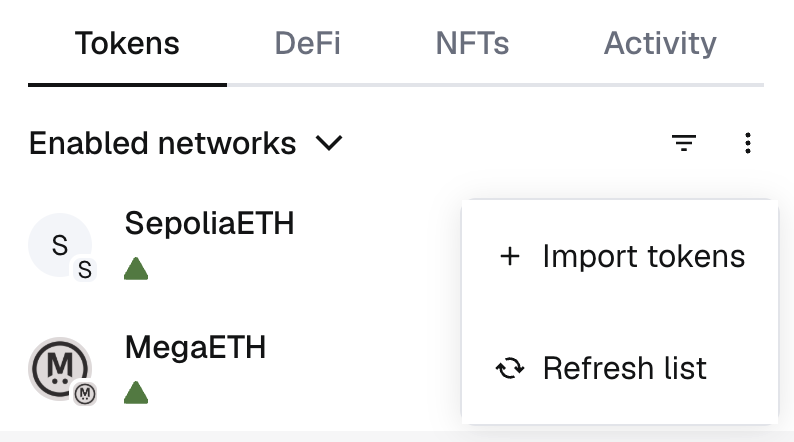
   1. Import FIABTC token for each destination chain. Enter the token contract address for each chain in your wallet:

      1. Ethereum: 0x22F0E0a4c97ff43546dad16d43Ef854C773F0e08
      2. Aptos: 0x75de592a7e62e6224d13763c392190fda8635ebb79c798a5e9dd0840102f3f93
      3. Sei, Core, Arbitrum, BASE, Polygon, Unichain, Plume: 0x60C230c38aF6d86b0277a98a1CAeAA345a7B061F
      4. BSC: 0xafB253A80CEb3d1a5eeF3994C0d1C92c2f027524
      5. HyperEVM: 0x0CEDa114F533D540c8aF2AeB52942c1a4A0B1e86

      &#x20;

      <figure><img src="https://2784505184-files.gitbook.io/~/files/v0/b/gitbook-x-prod.appspot.com/o/spaces%2FNaWxhWAPbrPeq8rIwJHB%2Fuploads%2FuhuU9PtdaWu4g81oJRtx%2Fimage.png?alt=media&#x26;token=d6c62df2-6d96-45c4-a204-5cf22a7be726" alt=""><figcaption></figcaption></figure>
   2. FIABTC will appear in your wallet.

<div data-full-width="false"><figure><img src="https://2784505184-files.gitbook.io/~/files/v0/b/gitbook-x-prod.appspot.com/o/spaces%2FNaWxhWAPbrPeq8rIwJHB%2Fuploads%2FaoCE4y3rSJESHEdePs9Q%2Fimage.png?alt=media&#x26;token=685e486d-c799-44bd-9879-0803d14a75c3" alt="" width="375"><figcaption></figcaption></figure></div>

***

## Withdraw

1. Connect EVM-compatible wallets (e.g., Metamask) or Aptos wallets (E.g., OKX Wallet).

<figure><img src="https://2784505184-files.gitbook.io/~/files/v0/b/gitbook-x-prod.appspot.com/o/spaces%2FNaWxhWAPbrPeq8rIwJHB%2Fuploads%2Fml0lRN9DkWMQtbfkp107%2Fimage.png?alt=media&#x26;token=917c8698-d25a-41eb-81f2-8201977565b5" alt=""><figcaption></figcaption></figure>

2. Fill out the recipient address on Bitcoin.

> If you have connected to a BTC wallet, an autofill option will appear below the text field.

<figure><img src="https://2784505184-files.gitbook.io/~/files/v0/b/gitbook-x-prod.appspot.com/o/spaces%2FNaWxhWAPbrPeq8rIwJHB%2Fuploads%2FO2k4OFyJSoxni9RNOaMB%2Fimage.png?alt=media&#x26;token=a3108b2a-4def-471c-bd7a-62f321763a6d" alt=""><figcaption></figcaption></figure>

2. Enter withdraw amount from `0.0002` to `3 BTC` .

<figure><img src="https://2784505184-files.gitbook.io/~/files/v0/b/gitbook-x-prod.appspot.com/o/spaces%2FNaWxhWAPbrPeq8rIwJHB%2Fuploads%2FaNXU2QMdyNAWHtv1SBJM%2Fimage.png?alt=media&#x26;token=45745a43-5d4c-49bd-9c2e-99158612ef21" alt=""><figcaption></figcaption></figure>

3. Check the Withdraw Summary pop up. Once confirmed, hit withdraw to submit this transaction.

<figure><img src="https://2784505184-files.gitbook.io/~/files/v0/b/gitbook-x-prod.appspot.com/o/spaces%2FNaWxhWAPbrPeq8rIwJHB%2Fuploads%2F4EhIqhspYxie056PDjPZ%2Fimage.png?alt=media&#x26;token=f6329c03-6dd1-4b1a-8ccd-ec30dad998cd" alt=""><figcaption></figcaption></figure>

4. Sign Burn Transaction in your EVM wallet.

<figure><img src="https://2784505184-files.gitbook.io/~/files/v0/b/gitbook-x-prod.appspot.com/o/spaces%2FNaWxhWAPbrPeq8rIwJHB%2Fuploads%2F3jatj1pPWb8Y2ELv32o0%2Fimage.png?alt=media&#x26;token=e604f479-d49a-497c-b85d-c33c94d5cc4b" alt=""><figcaption></figcaption></figure>

5. You can also check the withdraw status under bridge history.

<figure><img src="https://2784505184-files.gitbook.io/~/files/v0/b/gitbook-x-prod.appspot.com/o/spaces%2FNaWxhWAPbrPeq8rIwJHB%2Fuploads%2FLDneI1RunTA7nyOSRFxo%2Fimage.png?alt=media&#x26;token=a2aaf002-b372-429d-9ab3-db6e51cc0831" alt=""><figcaption></figcaption></figure>

* Click on one of the transactions to see details.

<figure><img src="https://2784505184-files.gitbook.io/~/files/v0/b/gitbook-x-prod.appspot.com/o/spaces%2FNaWxhWAPbrPeq8rIwJHB%2Fuploads%2FUOlbeUmgWClwvTDtVz8m%2Fimage.png?alt=media&#x26;token=2b519be6-1949-47f2-983f-fec4e6aa98d9" alt=""><figcaption></figcaption></figure>